Change a meeting's summary language
Each meeting's summary can be written in its own language. Choosing one changes only that meeting; Summary language in Settings stays the language for new meetings.
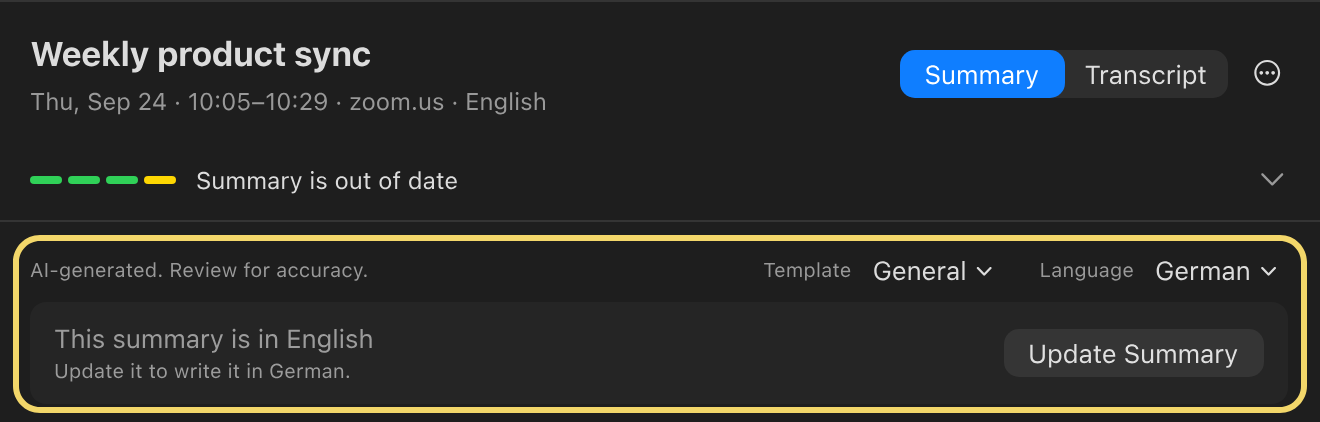
- Open the meeting's Summary tab and find Language on its first line. It appears once the meeting has a summary.
- Choose a language. The one marked (Default) is the language from Settings. A note under that line says which language the summary is in now.
- Click Update Summary in that note to write the summary again in the chosen language.
Your result: the summary is in the language you chose, and later updates of this meeting keep it. The meeting's title stays as it was; choose Rename with AI from the meeting's actions menu (⋯) for a name in that language. To change the outline as well, pick another template before you update: one update applies both.